Dashboard
After signing in, use Recent Projects to reopen a project or model. The sidebar also takes you to learning resources, your personal profile, and settings for the selected workspace.
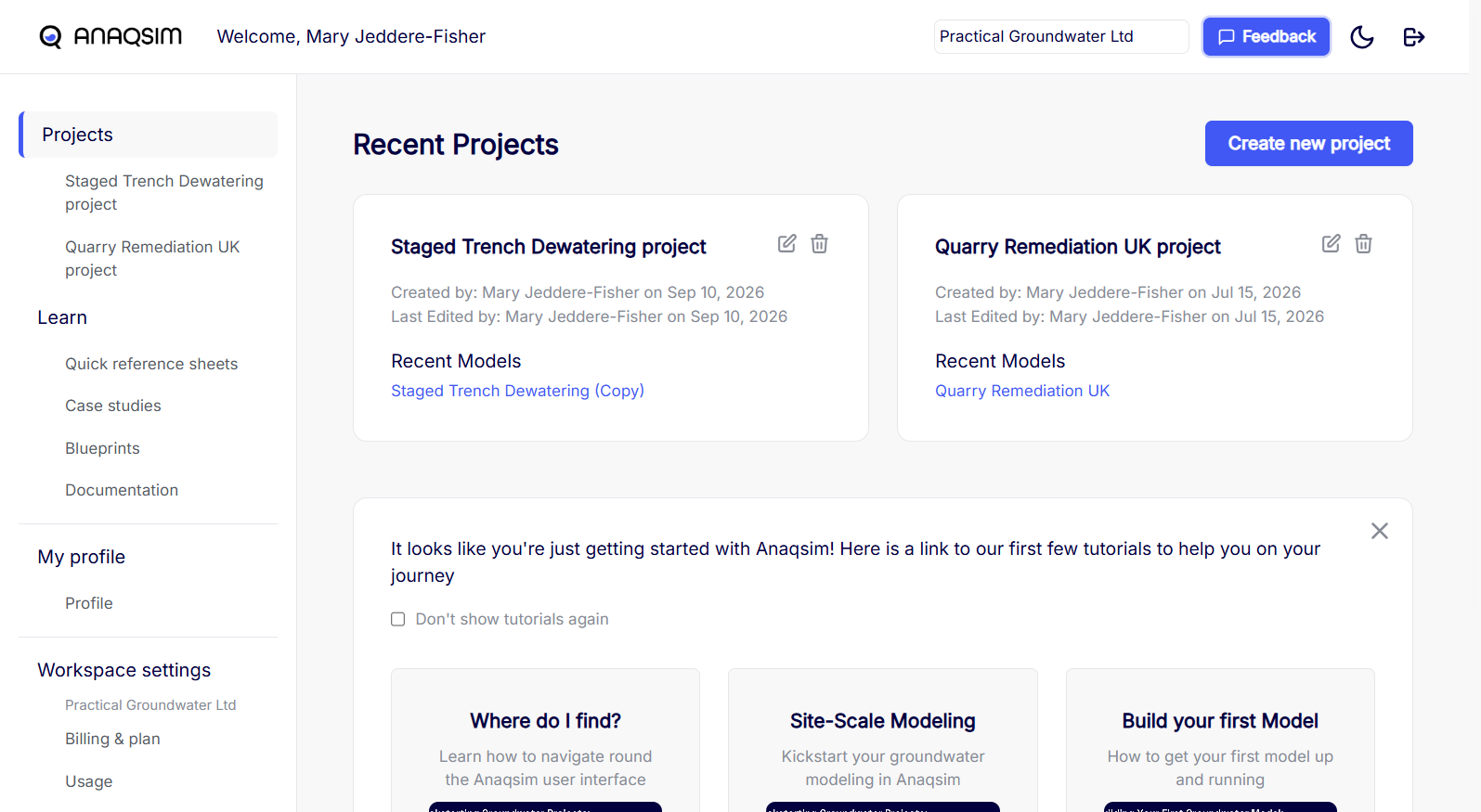
Top bar
| Control | What it does |
|---|---|
| Anaqsim logo | Opens the dashboard. Select Projects in the sidebar to return to Recent Projects. |
| Workspace menu | Switches the workspace you’re working in. Check the selected workspace before creating a project or reviewing usage. |
 Feedback |
Opens a form for sending feedback about the app. |
 Theme |
Switches between light and dark modes. |
 Sign out |
Signs you out of Anaqsim. |
Sidebar
- Projects opens the recent-projects view. Select a project beneath it to see its models and project settings.
- Learn opens quick reference sheets, case studies, blueprints, and documentation.
- My profile → Profile opens your personal account settings.
Workspace settings
These pages apply to the workspace selected in the top bar. Billing & plan and Team are workspace administrator pages.
| Page | Use it to |
|---|---|
| Billing & plan | Check the subscription, credit balance, storage allowance, and billing history. |
| Usage | See when credits were used and which projects used them. |
| Team | Invite people and manage workspace roles. |
Recent Projects
Select a project name to see all its models. Select a model under Recent Models to open it directly. To browse all projects in the selected workspace, use the sidebar.
Create new project opens a form for the project name, description, and coordinate system. The coordinate system applies to the project’s models. See Projects for how it affects online maps.