Data Panel
The Data Panel sits to the right of the map. It shows the cursor’s X,Y coordinates, the current model level, and the period, step, and time where applicable.
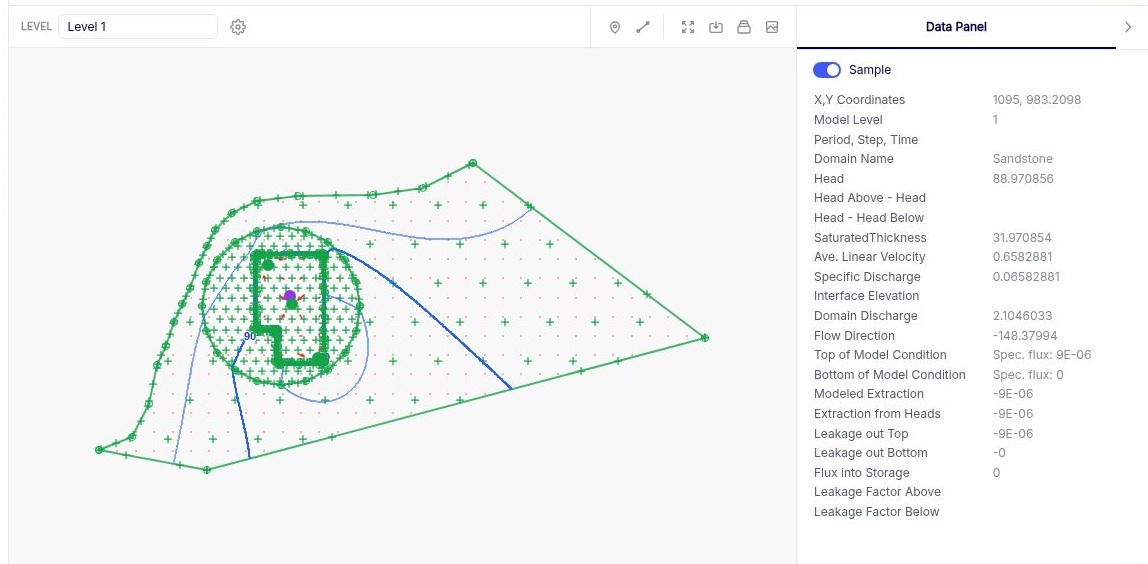
To sample solved values:
- Open a solved model and select a single Level above the map.
- Turn on Sample in the Data Panel.
- Move the cursor over the part of the model you want to inspect. The panel updates with the domain name and available values, such as head, saturated thickness, average linear velocity, and discharge.
When you first turn on Sample, the model may take a few seconds to load and display results. After that, values update more quickly as you move the cursor. Sample mode turns off after five minutes of inactivity.
Use the  right chevron at the end of the Data Panel header to collapse the panel and make more room for the map.