Modeling Interface
Open a model from Projects. Hover over a highlighted region, or move to it with Tab, to see what it does. Select the region to open its instructions.
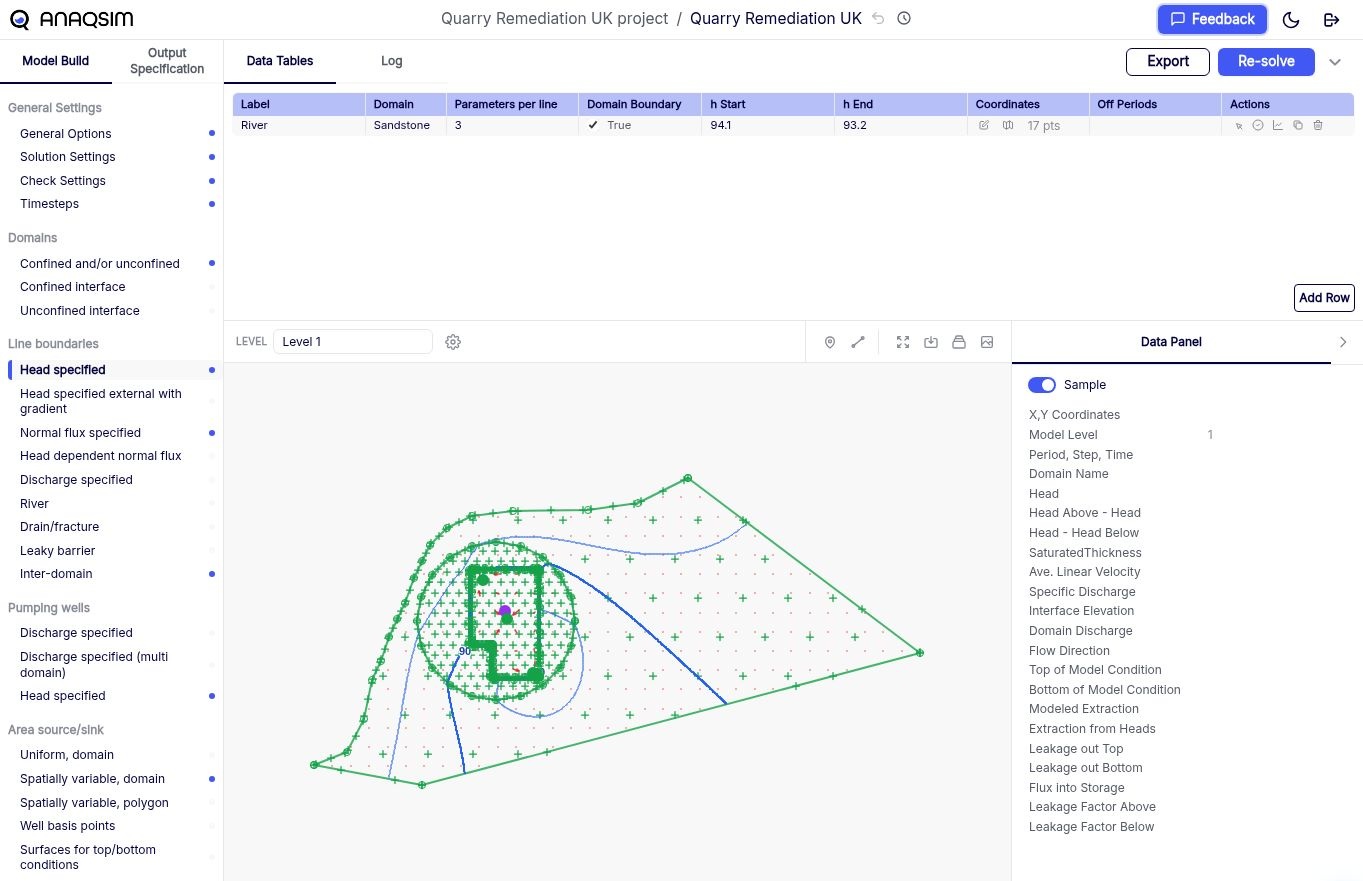
Return to project page Undo last change Version history Model Build Output Specification Data tables Log Export model results Re-solve Edit the current data table Map level Display settings Map toolbar Map Data Panel
Return to project
Select the project name at the top of the Modeling Interface to return to that project’s model list. Select the Anaqsim logo to open the dashboard.
| Control | What it does |
|---|---|
| Model Build | Choose model settings and elements. |
| Output Specification | Define where to report results, compare against observations, or start pathlines. |
| Data tables | Edit the selected table and use the row actions. |
| Log | Review solve progress and messages. |
| Solve | Check the inputs and run the model. |
| Export | Download tabular, GIS, or gridded outputs together. |
| Graph panel | Review or export results for an individual feature. |
| Map | Edit features, probe results, and use saved views. |
| Display settings | Choose layers, upload GIS data, or configure contours, vectors, and pathlines. |
| Data Panel | Inspect solved values at the cursor. |
| Undo last change | Reverses the most recent saved change. |
| Version history | Review, restore, or copy a saved version. |